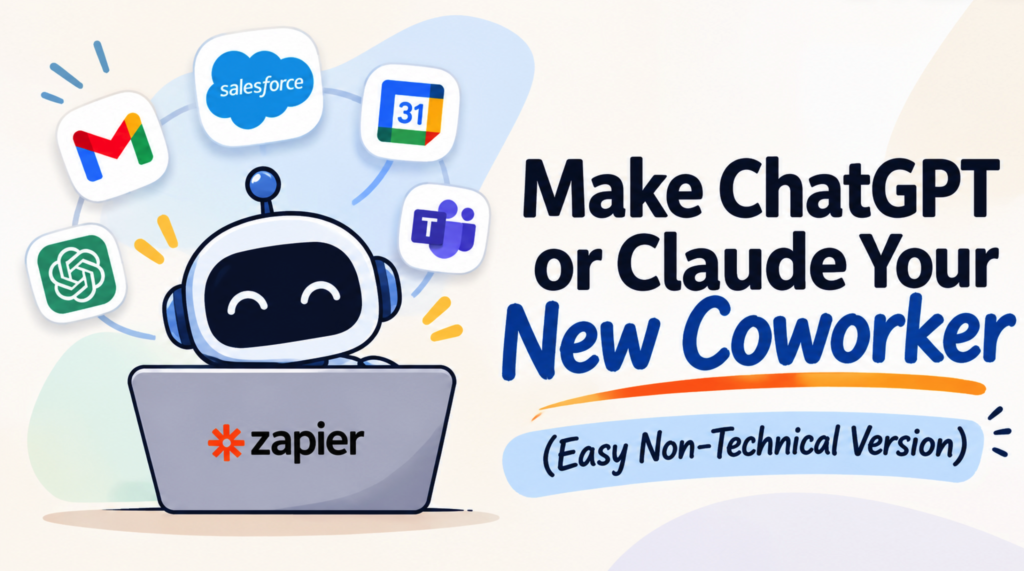
What if you could connect ChatGPT or Claude to Gmail, Google Calendar, Salesforce, Slack, and thousands of other applications, then simply tell your AI assistant what you want done?
Not ask it how to do something. Not ask it to write instructions for you or help you think through an idea. Actually have it do the work.
Imagine asking your AI assistant to review your emails, check your calendar, identify clients you haven’t followed up with, look at the corresponding Salesforce records, and give you a list of recommended next steps.
Or asking it to investigate why your sales team isn’t consistently updating Opportunity Stages in Salesforce, review the available data, identify patterns, and recommend changes to your automation.
That’s the idea behind Model Context Protocol (MCP), and one of the easiest ways to start experimenting with it is through Zapier MCP.
I built my first version of this in less than 10 minutes.
And here’s what made me enjoy it the most: You don’t need to be a developer to get started. I didn’t have to focus in to understand every little step, it was intuitive.
Let’s look at what it is, how it works, and some practical ways Salesforce professionals can use it.
What is MCP, and why should Salesforce professionals care?
MCP stands for Model Context Protocol.
In simple terms, it’s an open standard that allows AI assistants to connect to external applications, tools, and data sources.
Think about ChatGPT or Claude for a moment.
On their own, they’re great at understanding questions, analyzing information, generating ideas, and helping you work through problems.
But traditionally, if you wanted ChatGPT to review an email in Gmail, you’d have to copy and paste the email into the conversation.
If you wanted it to look at your Google Calendar, you’d need to provide the relevant information.
If you wanted it to investigate a Salesforce record, you’d need to give it the record details.
MCP changes that.
Instead of manually bringing information to your AI assistant, you can give it permission to access the applications and tools where that information already lives.
Your AI assistant can then discover available actions, retrieve information, and execute tasks through those connected applications.
The AI becomes more than a place to ask questions. It becomes an interface for getting work done.
Why Zapier MCP?
There are several ways to connect AI assistants to external applications. You can use native integrations, individual MCP servers, custom integrations, APIs, and other tools.
So why am I particularly interested in Zapier?
Because Zapier already connects thousands of applications.
According to Zapier’s documentation, its MCP offering provides access to more than 9,000 apps and 40,000 actions.
That means you’re not limited to Salesforce.
You’re not limited to Google Workspace.
You’re not limited to any particular software ecosystem.
You can connect the applications your business already uses and give your AI assistant access to the actions you choose to make available.
For a Salesforce professional, that might mean connecting:
- Salesforce
- Gmail
- Google Calendar
- Google Sheets
- Slack
- Microsoft Teams
- HubSpot
- Notion
- Asana
- Hundreds of other business applications
The real opportunity isn’t necessarily any one integration.
It’s the ability to work across all of them.
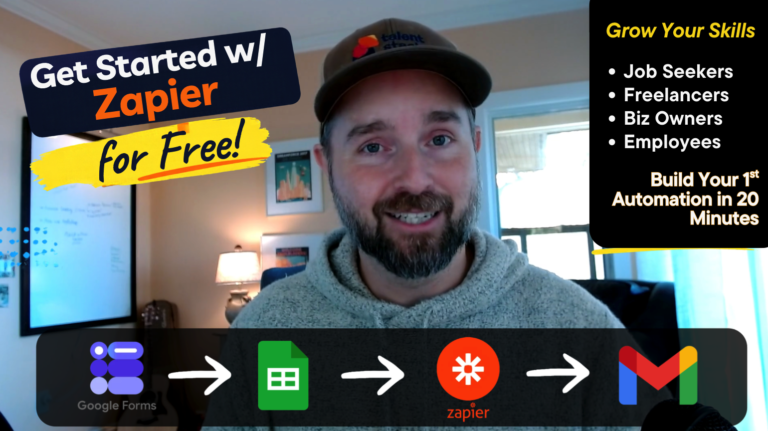
Here’s a super simple 2 step instruction to get Started with Zapier MCP totally free!

How does Zapier MCP actually work?
There are three main pieces involved.
1. Your AI assistant
This is the interface where you communicate what you want to accomplish.
Examples include ChatGPT, Claude, and other MCP-compatible applications.
2. Zapier MCP
Zapier provides the connection between your AI assistant and the applications you authorize.
It handles the app connections, credentials, and available actions.
3. Your connected applications
These are the actual systems where your information lives and where actions take place.
For example, Gmail contains your emails, Google Calendar contains your schedule, and Salesforce contains your CRM data.
When you give your AI assistant an instruction, it determines which available tools it needs, supplies the appropriate information, and asks Zapier to execute those actions.
The results are returned to your AI assistant, which can use them to determine what to do next.
You can even chain multiple actions together.
For example:
- Search Gmail for emails from a particular client.
- Find that client in Salesforce.
- Review the related Opportunity.
- Check Google Calendar for upcoming meetings.
- Summarize the situation and recommend next steps.
All from one conversation.
Getting started with Zapier MCP
This is surprisingly straightforward.
You don’t need to write code, configure API endpoints, or build a custom integration.
Here’s the basic process.
Step 1: Create or log into your Zapier account
If you don’t already have one, create a free account at Zapier.
Zapier MCP is available on its Free, Professional, Team, and Enterprise plans, subject to their respective usage limits.
Step 2: Connect Zapier MCP to your AI assistant
Visit Zapier MCP and follow the connection instructions for your preferred AI assistant.
Zapier currently provides setup instructions for ChatGPT, Claude, and several other MCP-compatible clients.
The exact steps vary by application, but the general idea is to authorize the connection between your AI assistant and Zapier.
Step 3: Connect your applications
Authorize the applications you want to use.
For example, you might connect Gmail, Google Calendar, and Salesforce.
You’ll then need to make the relevant actions available to your AI assistant.
You can start with a small number of read-only actions and expand as you become more comfortable.
Step 4: Start giving your AI assistant instructions
That’s it.
You can now start experimenting with prompts that involve information and actions across your connected applications.
You can find Zapier’s official setup instructions here:
Five practical ways Salesforce professionals can use MCP
Let’s get into the interesting part.
Once you’ve connected your applications, you can start giving your AI assistant instructions that involve multiple tools.
Here are five examples I’d encourage Salesforce professionals to experiment with.
1. Your AI email assistant
Let’s start with something simple.
Imagine you’re trying to schedule a few meetings.
Instead of switching between Gmail, Google Calendar, and ChatGPT, try this:
Example prompt:
“Look through my recent emails. Identify messages that need a response, check my Google Calendar for availability, and draft replies suggesting meeting times.”
Your assistant can:
- Review recent emails.
- Identify messages that appear to need a response.
- Check your calendar for available times.
- Draft suggested responses.
- Present everything for your review.
You could take this a step further and ask it to prioritize emails based on the sender, subject, or context.
That’s a pretty useful email assistant.
2. Your follow-up assistant
This one is particularly useful for freelancers, consultants, salespeople, and anyone managing client relationships.
How many times have you told someone you’d follow up and then completely forgotten?
Try this:
Example prompt:
“Find emails where I’ve promised to follow up with someone. Check whether I’ve already scheduled a meeting or sent another response. Give me a list of anything I’ve dropped the ball on.”
Or, for my freelancers and consultants:
“Take a look at my client list in Salesforce. Check my emails and make sure I sent every client a Weekly Status Report email last week. Give me a list of every client I forgot to send one to.”
Think about what that second example involves.
Your assistant needs to understand your client list, search your email history, identify the appropriate messages, match them to the right clients, and determine which clients may have been missed.
That’s a lot of work across multiple applications.
And you didn’t have to build a separate automation for every possible situation.
3. Your Salesforce Task and Case assistant
Now let’s get into something more interesting for Salesforce Admins and Consultants.
Imagine you want to identify Tasks and Cases that aren’t receiving enough attention.
Example prompt:
“Look through Salesforce Tasks and Cases assigned to me or currently unassigned. Identify any that haven’t had an activity logged in the last 7 days. Review the request information and recommend next steps. Create a follow-up task for each one, but show me the proposed tasks before saving them.”
Your assistant could:
- Search Salesforce Tasks and Cases.
- Identify records that meet your criteria.
- Review the available information.
- Recommend next steps.
- Prepare follow-up tasks.
- Ask you to approve the changes before creating them.
This is where things start getting interesting.
You’re not just asking AI to summarize information.
You’re giving it access to the tools and information needed to help you actually manage your work.
4. Investigate problems in your Salesforce org
Here’s another example I think Salesforce Admins will appreciate.
Imagine your sales manager comes to you and says:
“Our sales team isn’t consistently updating Opportunity Stages or logging Tasks and Events. Can you figure out what’s going on?”
Traditionally, you might start building reports, reviewing records, talking to users, and investigating your existing automation.
Now imagine giving your AI assistant access to the relevant Salesforce data.
Example prompt:
“Help me investigate why our sales team isn’t consistently updating Opportunity Stages or logging Tasks and Events to Opportunities. Look at the available Salesforce data, identify patterns, and recommend changes to our automations, validation rules, or other configurations.”
Your assistant could help investigate questions like:
- Are certain salespeople consistently missing updates?
- Are certain Opportunity Stages more likely to have missing activities?
- Are there patterns by team, record type, or Opportunity size?
- Are there existing automations that might be contributing to the problem?
- Would a validation rule, Flow, or process change help?
It might even help you develop a proposed solution.
You still need to validate the findings and make sure the recommended changes make sense.
But you’ve got another tool to help you investigate the problem.
5. Your business operations assistant
Let’s move beyond Salesforce for a moment.
Imagine you’re running a small consulting business.
You have client information in Salesforce, project information in Asana, conversations in Gmail, and financial tracking in Google Sheets.
You could ask:
“Review my active clients in Salesforce. Check Asana for projects that are overdue, review recent client emails for outstanding requests, and summarize which clients might need attention this week. Organize the results by client and recommend what I should prioritize.”
This is where the broader value of MCP becomes obvious.
Your business doesn’t operate inside one application.
Why should your AI assistant be limited to one?
MCP versus traditional Zapier automation
If you’ve used Zapier before, you might be wondering:
“Isn’t this just what Zapier already does?”
Not exactly.
Traditional Zapier automation is fantastic when you know exactly what should happen and want it to happen repeatedly.
For example:
- When someone submits a form, create a Salesforce Lead.
- When a new Salesforce Opportunity is created, send a Slack notification.
- When a payment is received, update a Google Sheet.
- When a task is completed, send an email.
You define the trigger, the conditions, and the actions.
The workflow runs according to those instructions.
MCP introduces a different interaction model.
Instead of defining every step in advance, you can describe the outcome you want and let the AI assistant determine which available tools and actions are needed.
| Traditional Zapier automation | Zapier MCP |
|---|---|
| You define the workflow | You describe the outcome |
| Predetermined triggers and actions | AI selects from available actions |
| Great for repeatable processes | Great for flexible, one-off tasks |
| Logic is configured in advance | Logic can adapt to the request and context |
| Runs automatically when triggered | Usually initiated through an AI conversation |
This doesn’t mean MCP replaces traditional automation.
In fact, I think the two work extremely well together.
Use traditional automation when you know exactly what should happen every time.
Use MCP when you want an AI assistant to investigate, reason through a situation, and work across multiple applications.
And combine them when it makes sense.
The bigger opportunity: Business users can participate in building automation
This is probably the part of MCP that interests me most.
For a long time, there’s been a technical barrier between the people who understand business problems and the people who can build solutions.
A business user identifies a problem.
They explain it to a Salesforce Admin, developer, or technical consultant.
That person translates the request into technical requirements, builds the solution, and eventually brings it back for review.
Then the business user asks for a change.
The process starts again.
There’s nothing inherently wrong with having technical people build solutions. We absolutely need skilled developers, architects, and administrators.
But the process can create a bottleneck.
The people closest to the problem aren’t always the people who can experiment with the solution.
And sometimes the technical interface itself becomes a barrier.
Think about the tools we often expect business users to navigate:
- VS Code.
- Desktop development environments.
- API documentation.
- JSON configurations.
- Technical automation builders.
- Developer-focused interfaces and terminology.
These are powerful tools. But they aren’t necessarily approachable for someone who simply wants to solve a business problem.
MCP introduces another possibility.
A business user can describe what they’re trying to accomplish in plain language.
They can ask the AI to explain what it’s doing.
They can review the proposed actions, ask questions, suggest changes, and refine the instructions.
They can experiment with different approaches without needing to understand every technical detail behind the integration.
The interface becomes a conversation instead of a technical configuration screen.
That doesn’t eliminate the need for technical expertise.
Someone still needs to establish the right connections, permissions, guardrails, and production controls.
But it creates an opportunity for business users to become much more involved in the process.
And I think that’s significant.
The person who understands the business problem can participate in shaping the solution instead of waiting for someone else to translate their needs into technical requirements.
That can improve feedback loops, build trust, and increase confidence in the solutions being created.
It also means Salesforce professionals may increasingly find themselves helping business users understand what’s possible, rather than being the only people capable of building it.
What about Salesforce Flow and Agentforce?
If you’re a Salesforce professional, you might be wondering where this fits alongside Salesforce’s existing automation and AI capabilities.
That’s a good question.
Zapier MCP isn’t a replacement for Salesforce Flow or Agentforce.
They solve overlapping but different problems.
Salesforce Flow
Flow is still an excellent choice when you need structured, repeatable automation inside Salesforce.
For example, automatically updating records, enforcing business processes, creating tasks, or orchestrating actions based on Salesforce events.
Salesforce Agentforce
Agentforce allows you to build AI agents within the Salesforce ecosystem.
These agents can reason through requests, use configured actions, access Salesforce data, and help execute business processes.
Salesforce also supports MCP capabilities, which can allow external AI clients and services to interact with Salesforce functionality.
Zapier MCP
Zapier’s biggest advantage is its ability to connect an AI assistant to applications across your business.
You’re not limited to Salesforce.
You’re not limited to any one CRM, email provider, or productivity platform.
You can work across the tools your business already uses.
Here’s how I’d think about it:
| What are you trying to accomplish? | Where I’d start |
|---|---|
| Automate a repeatable process inside Salesforce | Salesforce Flow |
| Build an AI agent for a Salesforce business process | Agentforce |
| Work across Salesforce, Gmail, Calendar, Slack, and other apps | Zapier MCP |
| Build a repeatable workflow across multiple applications | Traditional Zapier automation |
| Let a business user investigate a problem and experiment with possible solutions | An AI assistant connected through MCP |
You don’t have to pick one technology and use it for everything.
The interesting opportunity is understanding when each tool makes the most sense.
Common questions about security, PII, PHI, and data privacy
Before connecting an AI assistant to your email, CRM, calendar, or other business applications, there are some important questions to ask.
And these aren’t questions you should skip.
Does the AI learn everything it reads?
No. Accessing information through MCP is not the same thing as permanently training an AI model on that information.
There are three separate things to understand:
- Access: The AI assistant can retrieve information from the applications and actions you’ve authorized.
- Processing and retention: Information may be transmitted, processed, and stored by the connected services according to their respective policies.
- Model training: Whether that information can be used to improve the underlying AI model depends on the AI provider, account type, and privacy settings.
For example, Zapier states that it does not train its AI models on customer data that runs through workflows.
However, that doesn’t mean no information is stored. Zapier’s published retention policy specifically says that MCP prompts, responses, and tool execution logs are stored in your Zapier account until you delete the associated MCP server or account. Deleted MCP content is removed from backups within four months.
That’s an important distinction: Not being used for model training does not mean data is never stored.
Sources: Zapier Security and Compliance and Zapier Data Retention Policy.
Does ChatGPT or Claude train on the information?
This depends on which AI assistant you’re using and which plan you’re on.
For ChatGPT personal accounts, eligible conversations may be used to improve models when the relevant setting is enabled. You can turn off “Improve the model for everyone” under Settings → Data Controls.
For ChatGPT Business, Enterprise, Edu, and API services, inputs and outputs are not used to train models by default.
Anthropic has similar distinctions between consumer and commercial Claude offerings. Its commercial products do not use customer inputs and outputs to train models by default, while consumer accounts have separate privacy settings and choices.
The important point is that connecting an application through Zapier MCP doesn’t override the privacy policies of the AI assistant you’re using.
You need to understand both sides of the connection.
Sources:
- OpenAI: How your data is used to improve model performance
- Anthropic: Is my data used for model training?
What about PII and PHI?
PII stands for Personally Identifiable Information.
This includes information such as names, email addresses, phone numbers, and other details that can identify an individual.
PHI stands for Protected Health Information.
This includes identifiable health information protected under HIPAA, such as patient records, diagnoses, and treatment information.
These aren’t interchangeable categories, and they don’t all carry the same regulatory requirements.
You should be particularly careful with sensitive personal information, financial information, employee records, and customer data.
An important limitation: Zapier does not support processing HIPAA-regulated PHI and does not sign Business Associate Agreements (BAAs) for handling PHI.
That means you should not use Zapier MCP to process HIPAA-regulated PHI, even if you’ve disabled model training in ChatGPT or Claude.
For other types of confidential business information, you need to evaluate the applicable contracts, data-processing terms, permissions, retention policies, and organizational requirements.
A platform having SOC 2 certification or encryption does not automatically make every use case compliant.
How do I reduce the risk?
Here are some practical recommendations before connecting business applications:
- Start with test accounts and sample data.
- Connect only the applications you actually need.
- Give the AI assistant access only to the actions it needs.
- Start with read-only access before enabling actions that create, update, or delete records.
- Require human approval before sending emails, changing important records, or taking consequential actions.
- Review your AI provider’s data controls and Zapier’s retention policies.
- Get approval from your organization’s security or compliance team before connecting company systems.
Remember: Even read-only access can expose sensitive information.
The goal isn’t to avoid connecting AI to business applications. It’s to be intentional about what you connect and what you allow it to do.
Your first MCP experiment
If you’ve made it this far, I’d encourage you to try something simple.
Don’t start by giving an AI assistant access to your entire business.
Connect one or two applications and experiment with a task that would normally require you to switch between them.
Here’s a prompt to try:
The prompt:
“Review my recent emails and Google Calendar events. Identify any commitments I’ve made to other people that I haven’t completed yet. Organize them into a list with the person’s name, what I promised, when I made the commitment, and your recommended next step. Don’t send any emails or create any calendar events. Just show me the results.”
This is a great first experiment because you’re asking your AI assistant to investigate information across multiple applications, recognize context, and provide something useful without making changes to your accounts.
Once you’re comfortable with that, start experimenting with Salesforce.
Try connecting your CRM and asking questions that involve both Salesforce records and information from your other applications.
You’ll probably start thinking of dozens of possibilities.
Final thoughts: The future of automation is bigger than any one platform
For years, we’ve been building automations around individual applications.
Salesforce professionals build Flows.
Zapier users build Zaps.
Developers build integrations.
Each tool has its place, and those capabilities aren’t going away.
But MCP introduces another layer.
Instead of requiring every business process to be designed in advance, we’re starting to give AI assistants the ability to understand a request, access the tools they need, and work through the steps.
And perhaps just as importantly, we’re giving non-technical business users a more accessible way to participate in that process.
You don’t need to know how to write an API call to explain what you want to accomplish.
You don’t need to open VS Code to experiment with a business process.
You don’t need to be a developer to start understanding how your applications can work together.
You still need good judgment, security controls, and technical expertise when the situation calls for it.
But the barrier to getting started is getting lower.
I think Salesforce professionals should be paying attention to this.
Not because MCP replaces Salesforce, Flow, or traditional automation.
But because the ability to connect AI to the tools people already use is going to change how we think about getting work done.
And you can start experimenting with it today.
Want to try it?
I’ve put together a starting point to help you connect Zapier MCP to ChatGPT, Claude, or another supported AI assistant.
You might be surprised by what you can get an AI assistant to do by the end of the week.