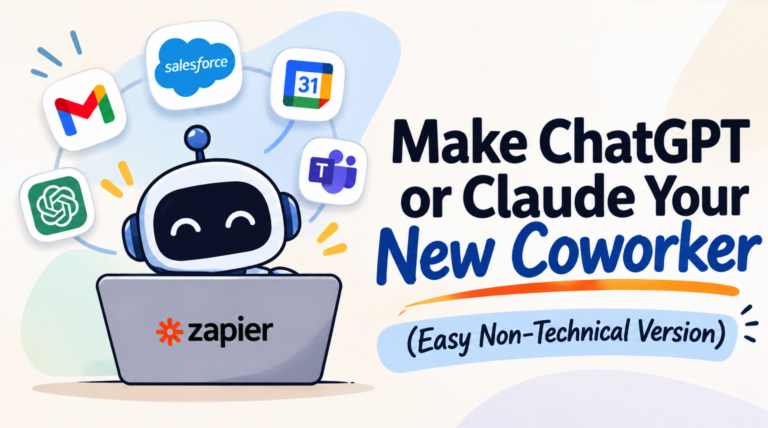
Imagine being able to tell your AI assistant to find an email, update a Salesforce record, create a Google Calendar event, or send a Slack message, without having to jump between applications or manually copy and paste information.
That’s exactly the kind of capability that Zapier MCP makes possible.
Until recently, AI assistants like Claude and ChatGPT were primarily tools for generating content, answering questions, analyzing information, and helping you think through problems. But what happens when you give those AI assistants the ability to interact with the applications you already use every day?
That’s where Zapier and the Zapier MCP come in. Why Zapier specifically? I’ve been using Zapier for 7+ years so it’s one of my personal go to tools.
Whether you’re exploring AI agents, looking to automate repetitive tasks, or simply interested in getting more out of your AI assistant, Zapier MCP is a great place to start.
And the best part? You don’t need to be a developer to get started.
In this guide, we’ll walk through what Zapier MCP is, how to set it up in your Zapier account, and how to connect it directly to Claude so you can start putting AI to work.
What Is Zapier MCP?
Before jumping into the setup, let’s quickly explain what MCP actually is.
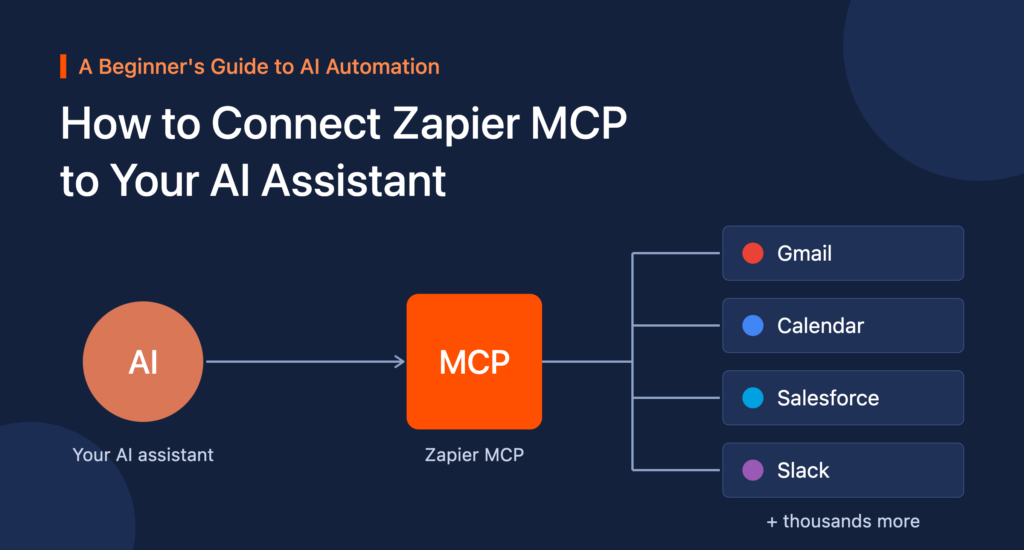
MCP stands for Model Context Protocol. It’s an open standard that allows AI applications to connect with external tools, services, and data sources.
Think of it as a bridge between your AI assistant and the applications you use.
For example, Claude is great at understanding natural language and helping you work through problems. But without integrations, it can’t independently access your Gmail account, update a spreadsheet, or create a task in your project management software.
MCP gives it a way to interact with those external applications.
Zapier MCP makes this especially powerful because it provides access to thousands of applications through one connection.
Rather than having to configure individual integrations or build custom API connections, Zapier handles the connections and makes available actions that your AI assistant can use.
Some examples of what this can enable:
- Email: Find emails, send messages, and draft replies.
- Calendar: Check availability and create calendar events.
- CRM: Find contacts, update records, and manage customer information.
- Project Management: Create tasks, update projects, and organize work.
- Communication: Send messages through Slack and other communication tools.
- Spreadsheets: Retrieve information, create records, and update data.
The possibilities become particularly interesting when you start combining multiple applications into a single workflow.
For more information, visit Zapier’s official MCP page.
Step 1: Create Your Free Zapier Account
Before connecting Zapier to your AI assistant, you’ll first need a Zapier account.
If you don’t already have one, Click here to get your Free Zapier Account.
Once you’ve created your account, you’re ready to follow along with the first tutorial.
Watch: How to Set Up Zapier MCP
The following video walks through setting up Zapier MCP within your Zapier account.
Follow along with the video to get your MCP server configured and ready to connect to an AI assistant.
This is the foundation of everything else we’ll be doing. Once your Zapier MCP setup is complete, you’ll have the ability to configure which application tools your AI assistant can access.
Feel free to move through the settings, see all of the different tools you can connect to, get those wheels spinning and then move to step 2.
A quick tip: Be intentional about the permissions and actions you enable. For example, you might want your AI assistant to be able to find and draft emails before giving it permission to send them. Start with a few useful actions and expand as you become more comfortable.
Step 2: Connect Zapier MCP Directly to Claude
Now that you have Zapier MCP configured, let’s take things a step further.
One of the most interesting applications of MCP is connecting it directly to an AI assistant like Claude.
This allows you to interact with your connected applications using natural language.
Instead of navigating between Gmail, Google Calendar, your CRM, and other applications, you can simply ask Claude to perform an action on your behalf.
For example:
- “Find the latest email from John about the project proposal and summarize it.”
- “Check my calendar for tomorrow and find an hour when I’m available.”
- “Create a new contact in my CRM using the information in this email.”
- “Find my upcoming meetings and send me a summary.”
Claude can interpret your request, identify the appropriate Zapier tools, and execute the actions you’ve authorized.
Watch: Connect Zapier MCP to Claude
If you’re ready to see this in action, Zubair Trabzada has put together a great walkthrough showing how to connect Zapier MCP directly inside Claude.
In this tutorial, Zubair walks through the process of connecting Claude to Zapier, configuring the available tools, and demonstrating how Claude can interact with everyday business applications.
It’s a great next step once you’ve completed the initial Zapier MCP setup.
What Can You Actually Do With Zapier MCP?
Getting everything connected is one thing. Understanding what you can do with it is where things get exciting.
The real value of Zapier MCP isn’t simply that your AI assistant can access another application. It’s that you can combine the reasoning capabilities of AI with the ability to take action across your existing technology stack.
Consider a few practical examples.
1. Turn Your AI Assistant Into an Email Assistant
Rather than spending time searching through your inbox, you could ask Claude to find specific messages, summarize conversations, identify outstanding questions, and help draft responses.
With the appropriate tools and permissions enabled, it can also send those responses.
2. Connect AI to Your CRM
Imagine asking your AI assistant to look up a customer, retrieve information from your CRM, summarize their recent activity, and update their record.
Instead of manually navigating through your CRM, you can use a conversation to accomplish several steps.
This can be particularly useful for sales teams, account managers, and anyone who spends a significant amount of time working with customer data.
3. Automate Your Everyday Administrative Work
You could ask your AI assistant to review your calendar, identify scheduling conflicts, create tasks, or organize information across different applications.
These are the kinds of repetitive administrative tasks that can consume a surprising amount of time throughout the week.
4. Start Building More Advanced AI Agents
This is where things get really interesting.
Once you understand how MCP works, you can start thinking beyond individual actions.
You can give an AI assistant a goal, provide it with access to the tools it needs, and allow it to work through a series of steps to accomplish that goal.
For example, you might ask it to research a prospective customer, gather information from different sources, create a CRM record, and prepare a personalized outreach email.
Rather than manually performing each step, you’re giving AI the ability to coordinate work across multiple applications.
Of course, you’ll want to establish appropriate permissions, review important actions, and understand how your tools are configured before allowing more autonomous workflows.

Is Zapier MCP Free?
You can get started by creating a free Zapier account, and Zapier MCP doesn’t require a separate MCP subscription.
However, there are a few things worth understanding about usage.
Zapier MCP uses your existing Zapier plan’s task allowance. Each successful MCP tool call currently consumes two tasks, so your usage will depend on how frequently you use it and which actions you perform.
If you’re just getting started, a free account is a great way to explore the technology and understand what’s possible.
You can review the current Zapier pricing plans and MCP usage and billing documentation before scaling your usage.
Final Thoughts: Start Exploring What’s Possible With AI and Zapier
We’re entering a new phase of AI adoption.
For a while, the primary value of AI assistants was their ability to help us think, write, research, and generate information.
Now, with technologies like MCP, we’re beginning to see AI assistants become much more capable of actually doing things.
Zapier MCP is one of the easiest ways to start exploring this shift because it connects AI to applications and services you may already be using.
You don’t need to build custom integrations, write code, or be an experienced developer to get started.
Start with a free Zapier account, follow the setup tutorials above, connect your favorite AI assistant, and experiment with a few practical use cases.
You might be surprised by just how much of your everyday work you can hand over to an AI assistant.
Want Even More Salesforce Career Content?
Watch Salesforce Career focused videos, listen to podcasts and check the menu items above for links to free content and courses.